
Add Amazon Web Services (AWS) Credential
In order to allow Devopness to manage AWS resources on your behalf, IAM user security credentials have to be provided.
If you don't have access to an AWS account, you can create an account for free following the cloud provider specific guide AWS Free Tier
- Log in to AWS console and access AWS IAM
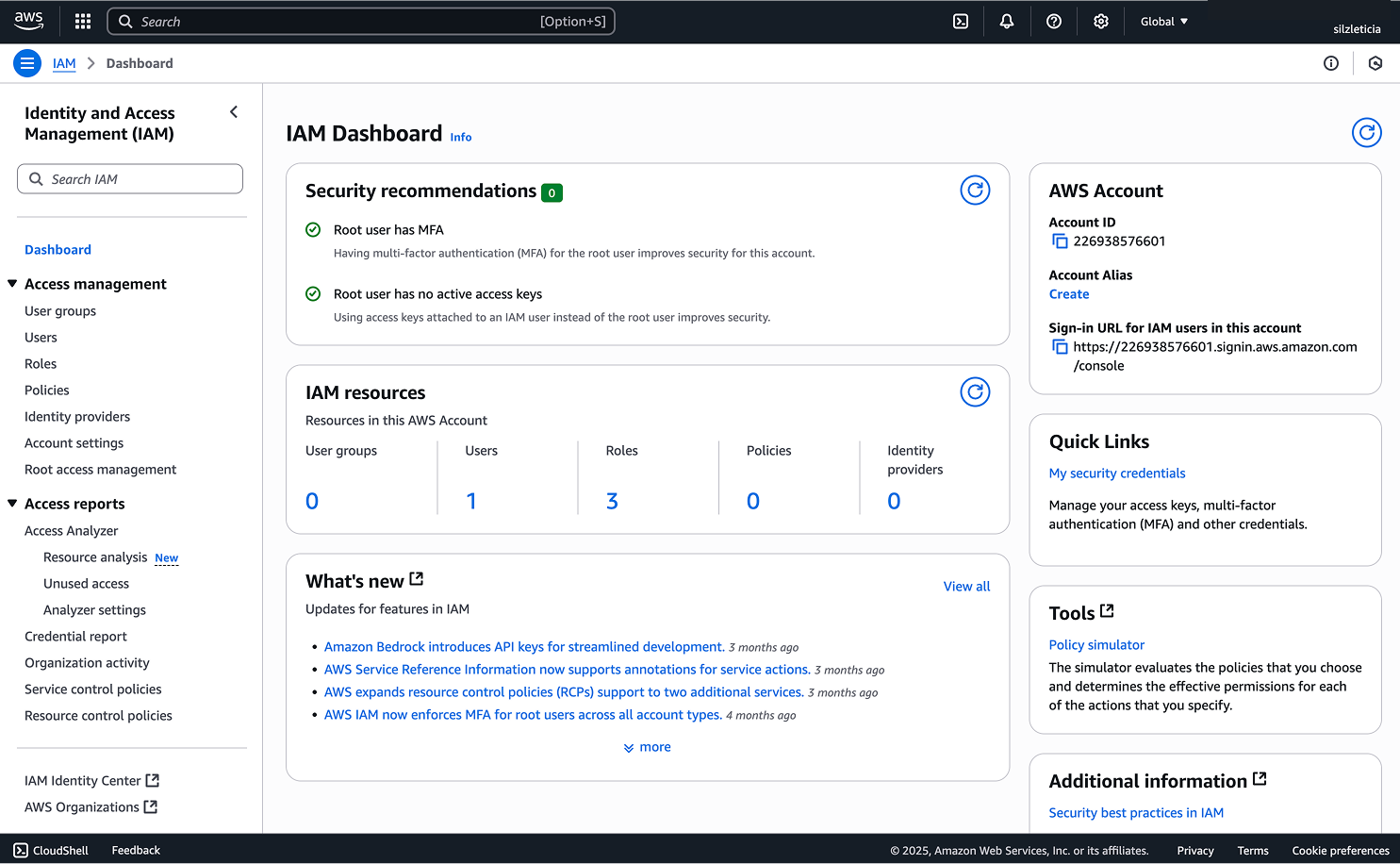
- In the navigation pane on the left side, choose
Usersand then chooseCreate user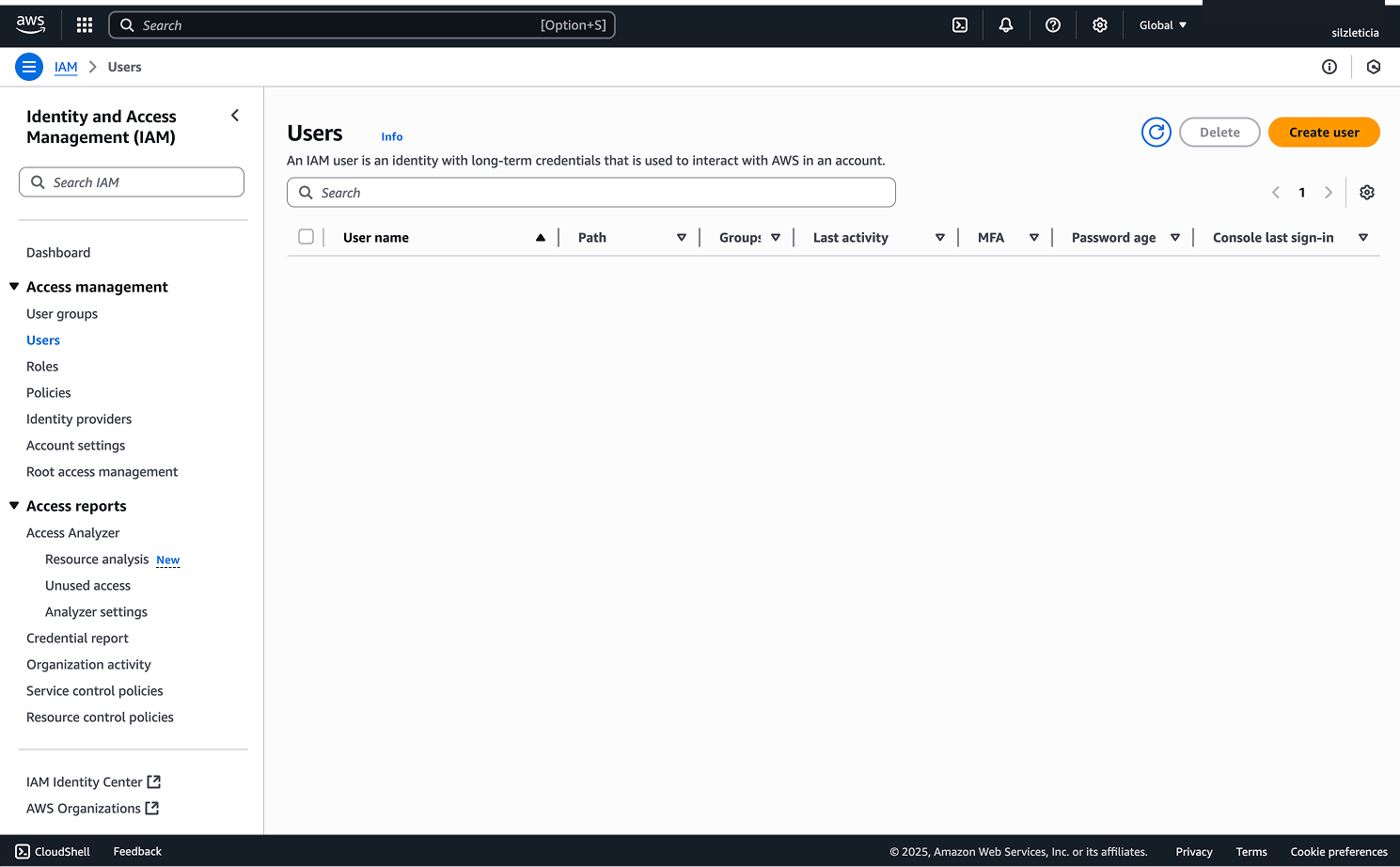
- Type the user name for the new user and click
Next. Tip: you might want to name the user asdevopnessto make it easier to track its activities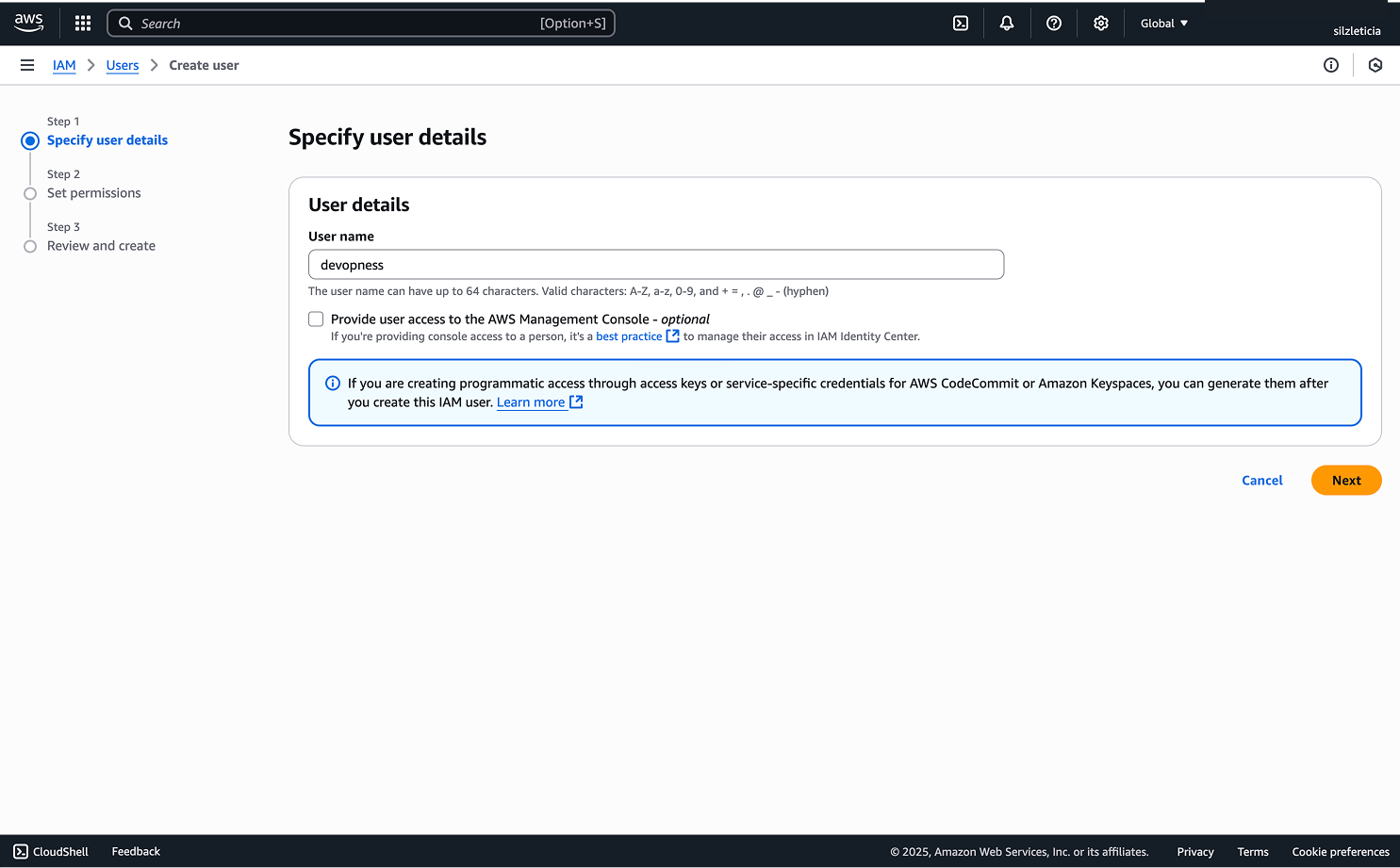
- In the
Set Permissionsstep clickAttach policies directly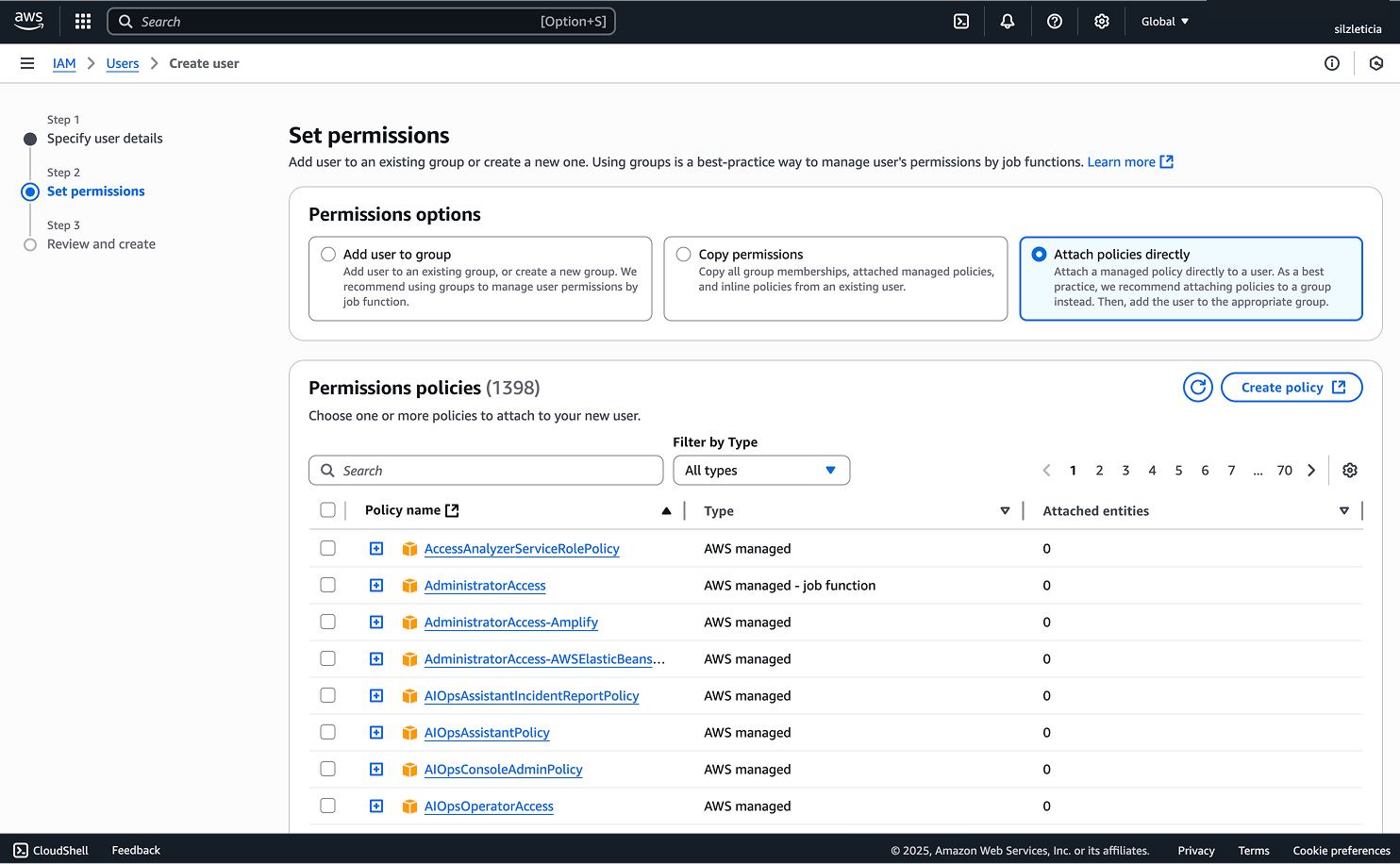
- Search and select the policies
AmazonEC2FullAccess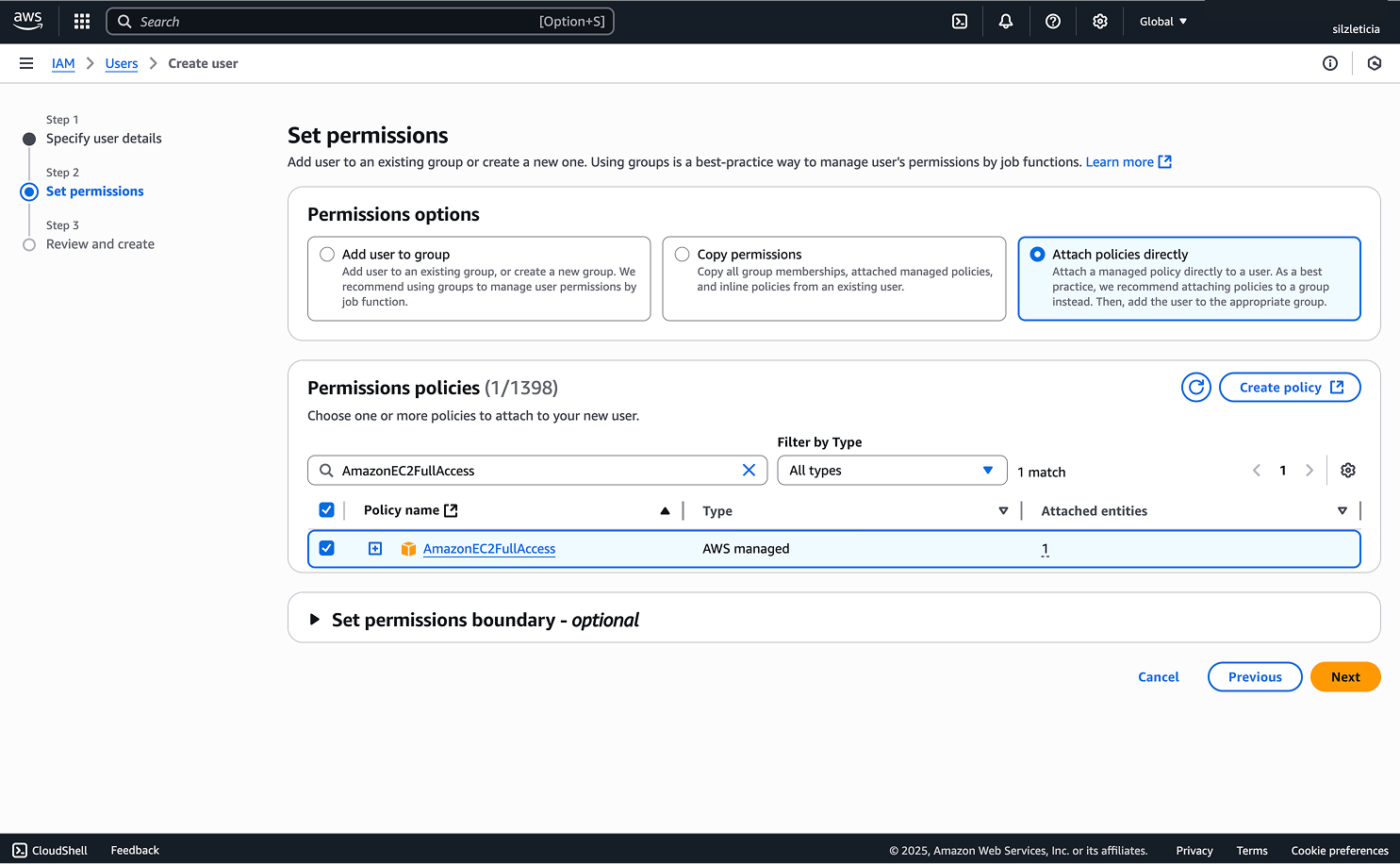
- and
IAMReadOnlyAccess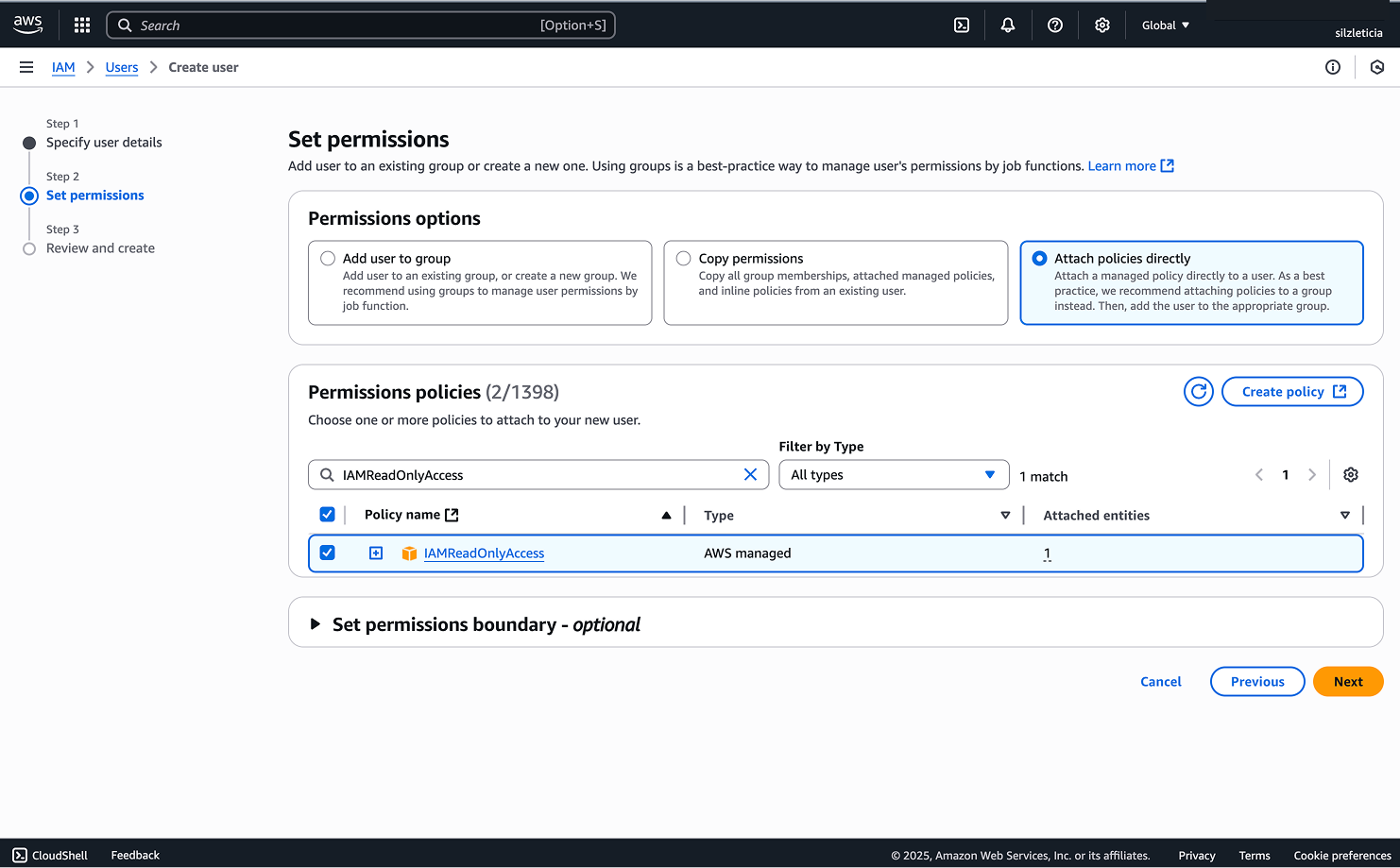
- Follow the prompts then click
Create user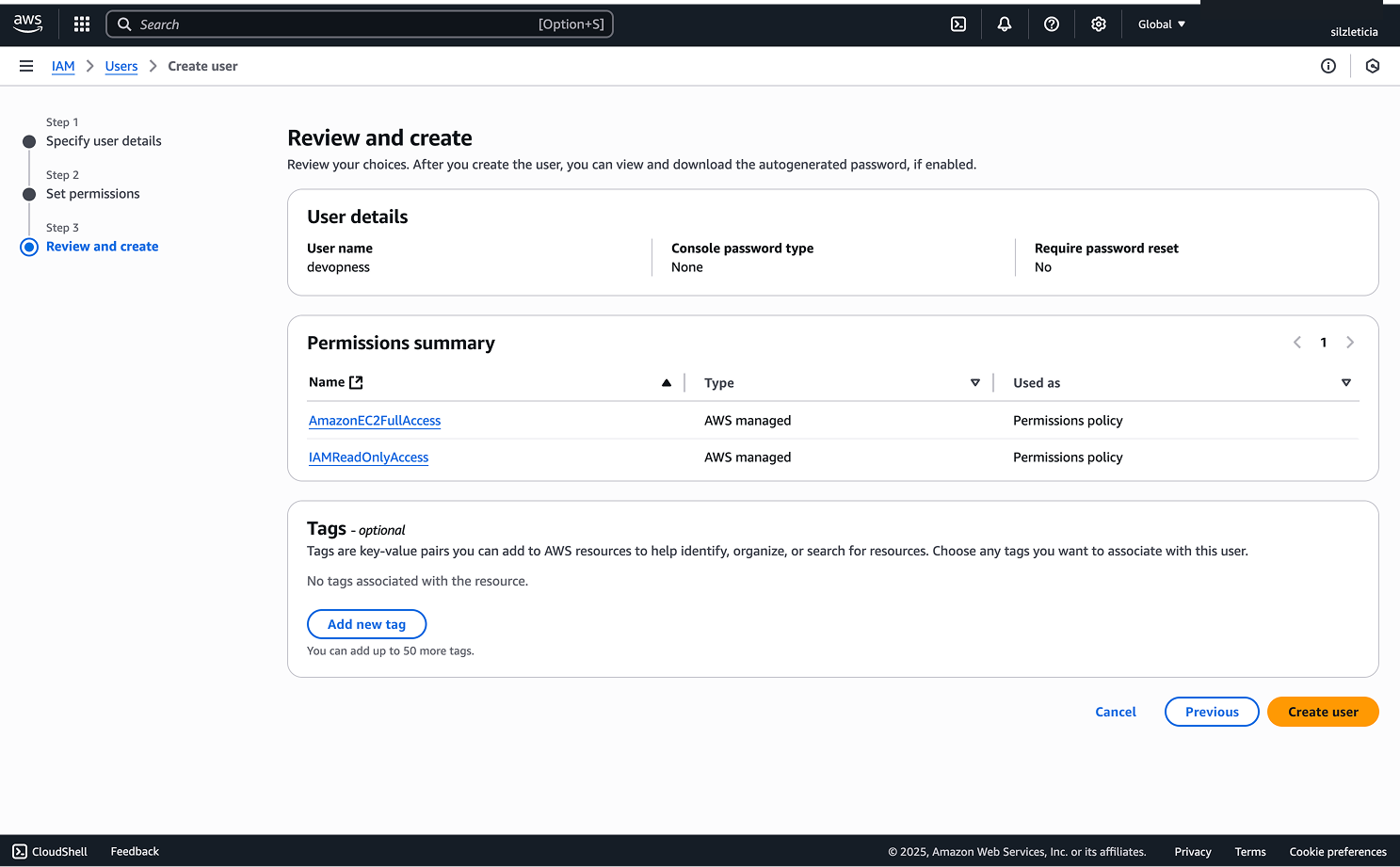
- In the
Userslist, click the username link of the user you've just created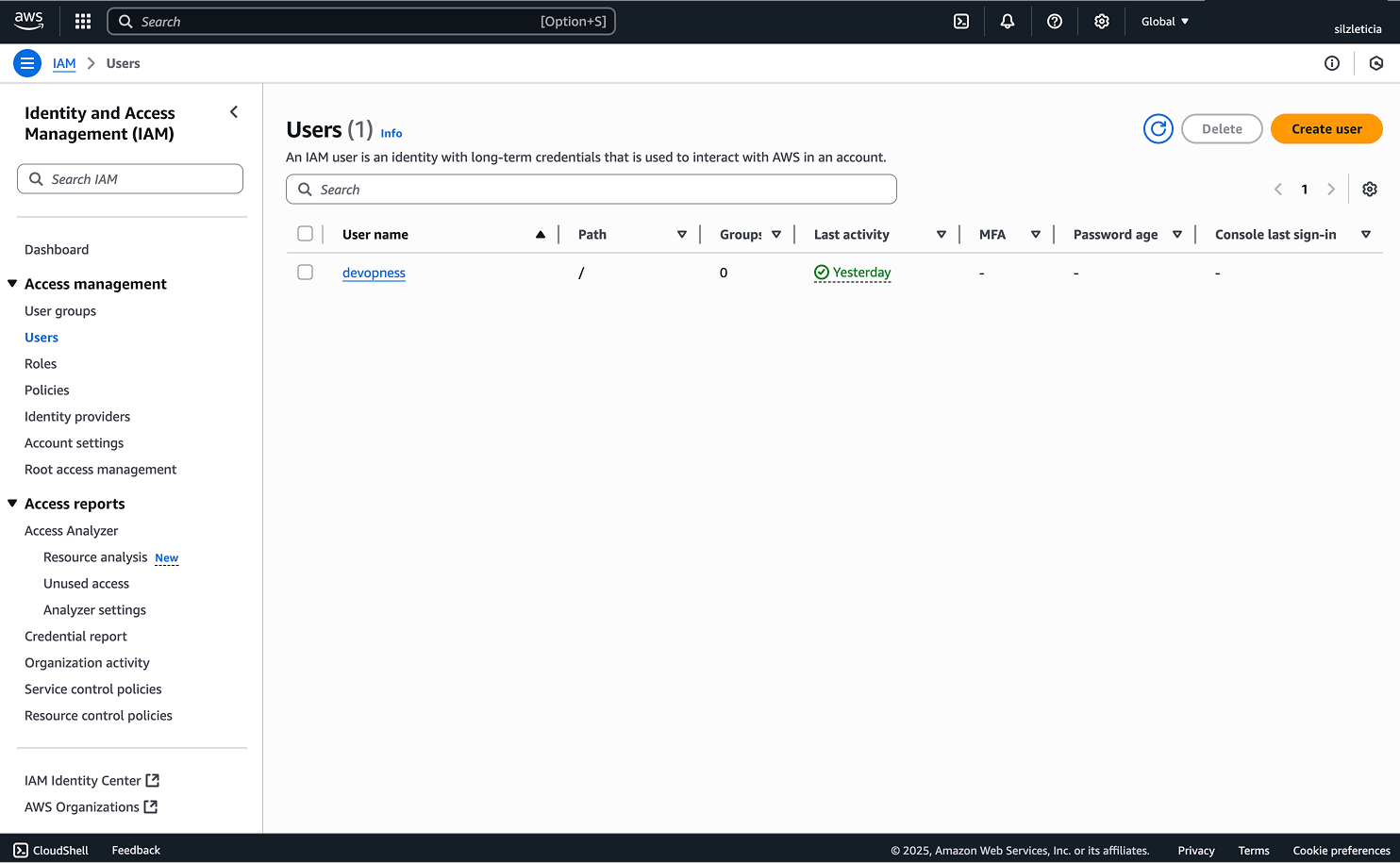
- Navigate to the
Security credentialstab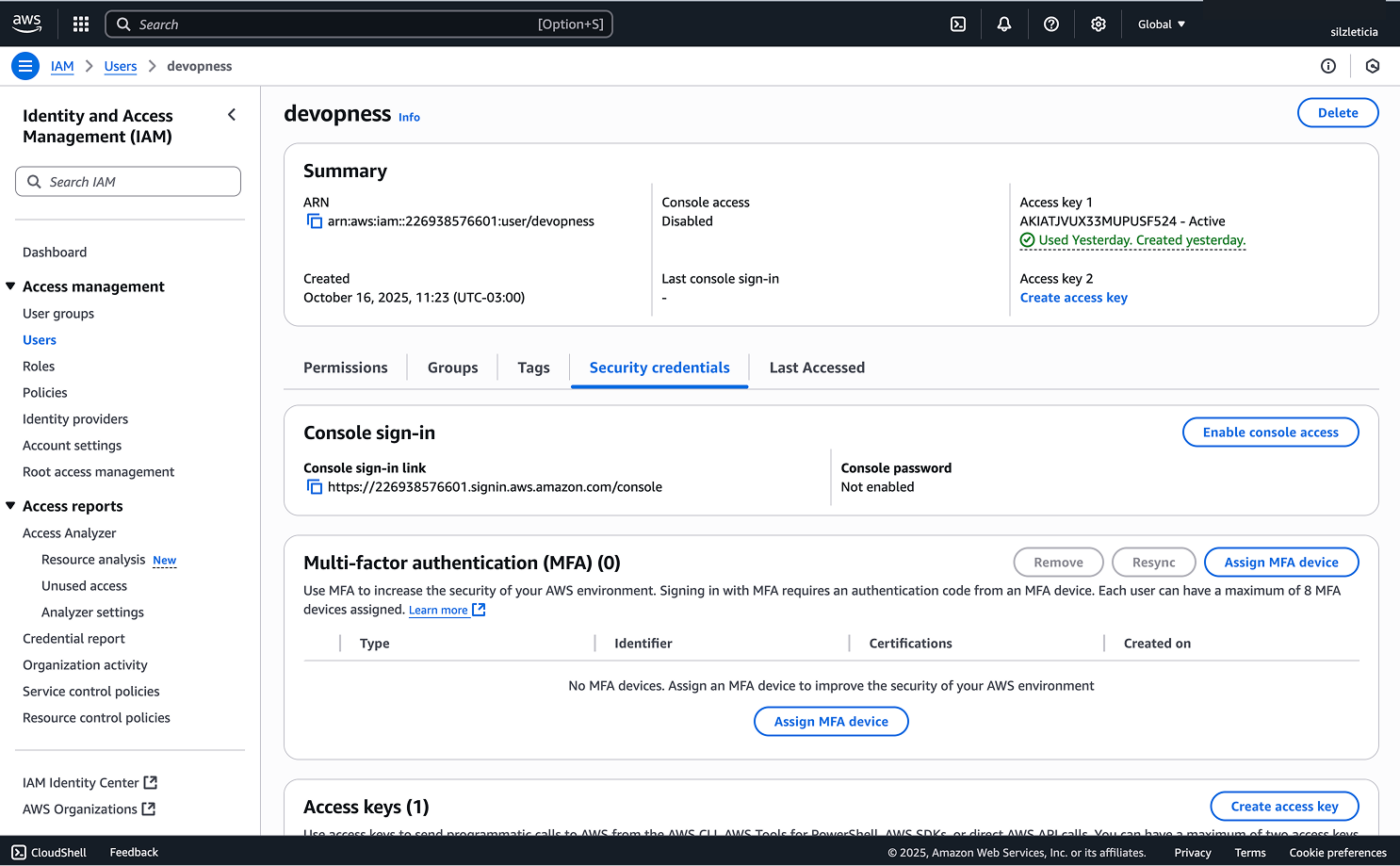
- In this page, scroll down to the
Access keyssection and clickCreate access key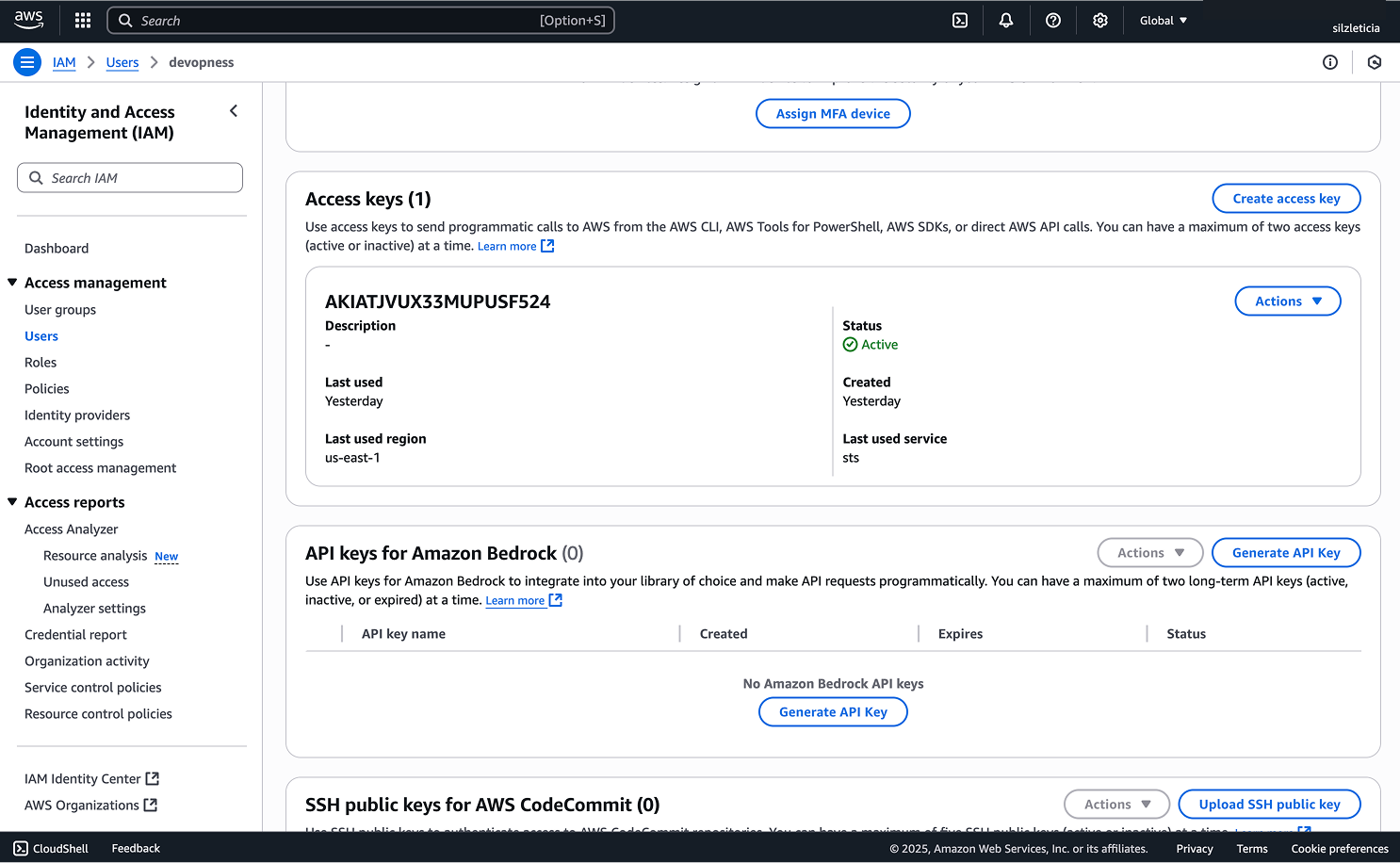
- Choose
Otherand clickNext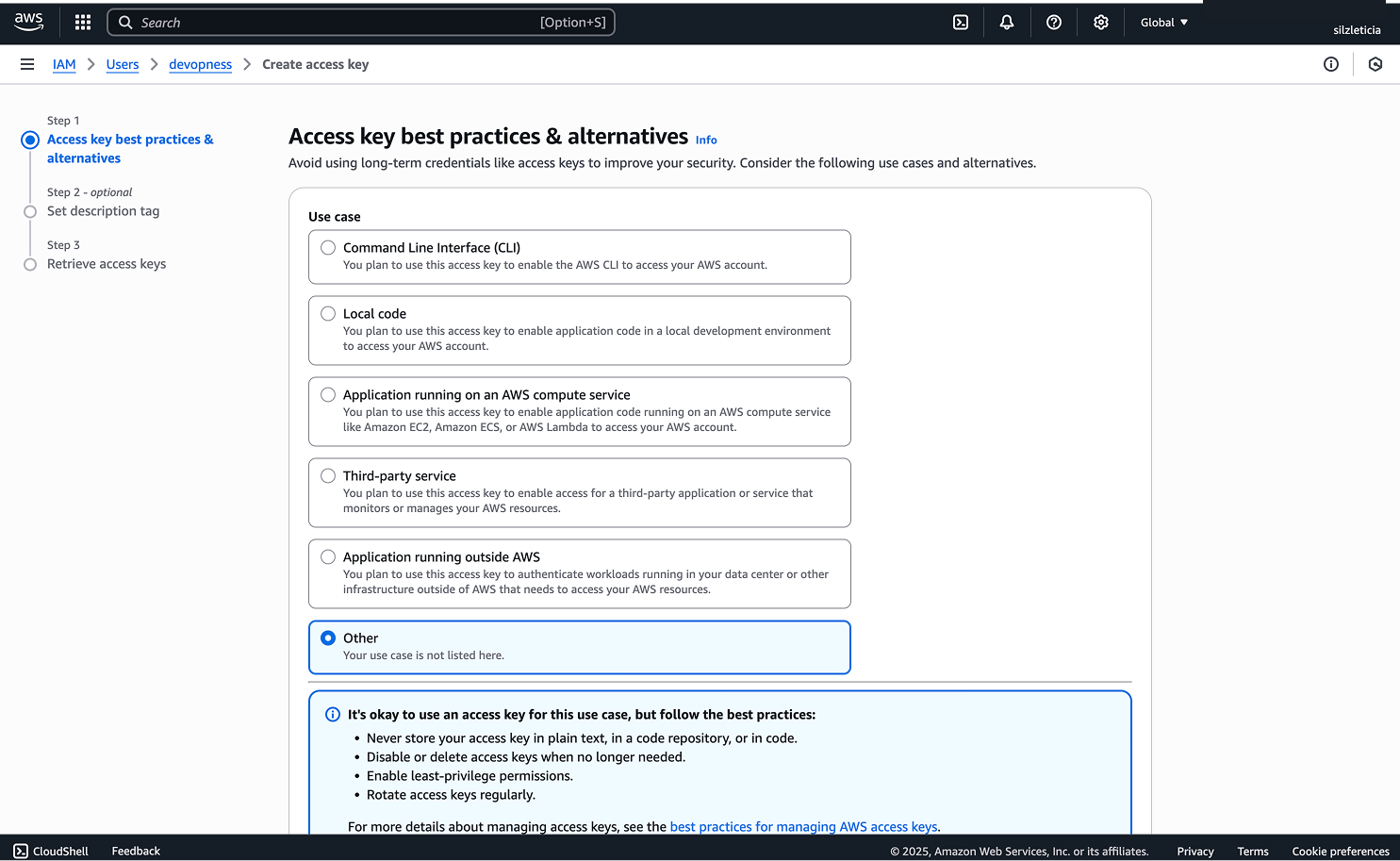
- Give the key a description (Optional) and click 'Next' and click
Create access key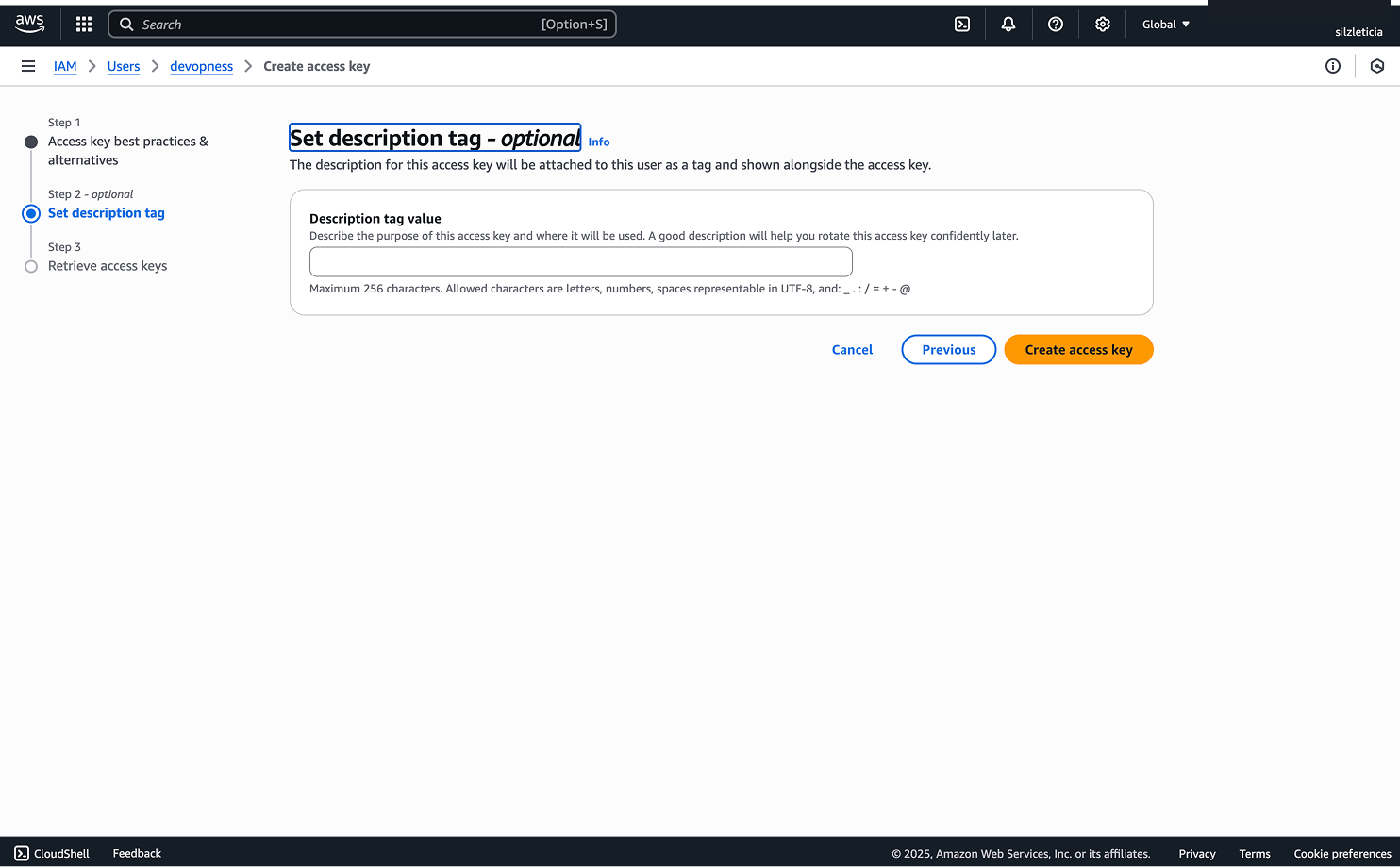
- Copy the values of
Access key IDandSecret access key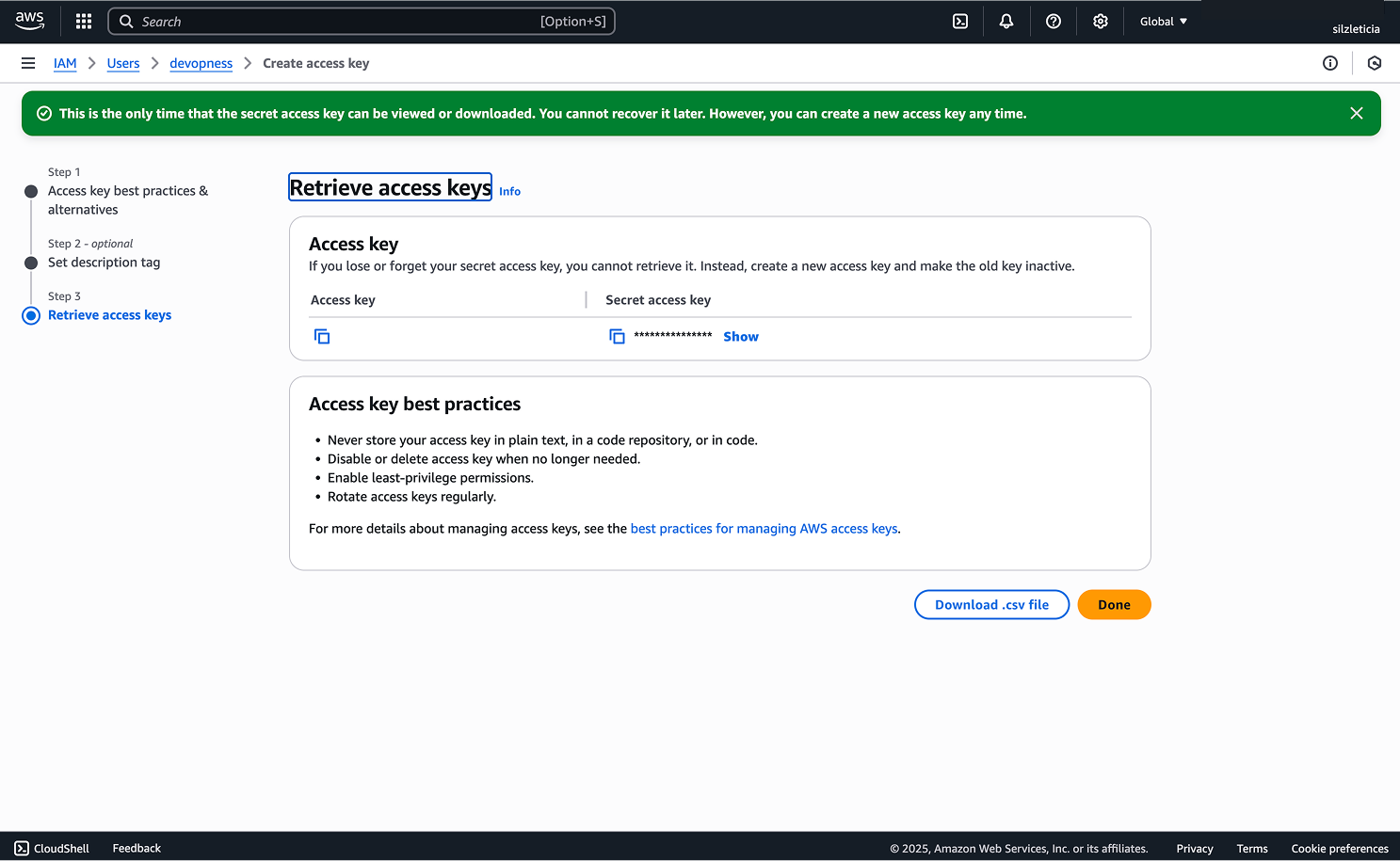
- To add the copied credentials to Devopness see Add credential
Credentials
In this section you will learn how to add cloud provider and source provider credentials to an environment, allowing you and your team to use Devopness to provision and manage cloud resources and deploy applications securely.
Add Microsoft Azure Credential
In order to allow Devopness to manage Azure resources on your behalf, Service Principal credentials have to be provided.